
Setup your school with VIDYAOne School Management Software
This guided onboarding helps you install, configure, and activate the system step by step, so your school can start daily operations smoothly.
SETUP STATUS
Secure & Ready
Let’s get started with VIDYAOne School Management Software.
Before we move ahead, let’s quickly confirm your software purchase. If you already have VIDYAOne, you can continue to the next onboarding step. If not, you’re welcome to explore the product, book a demo, or complete your purchase first.
Have a license? Let’s continue.
Perfect. If your school has already purchased VIDYAOne School Management Software, you can move ahead with onboarding. In the next step, we’ll verify your license and begin setting up your system.
Yes, I have a LicenseDon’t have a license yet?
That’s completely fine. You can explore VIDYAOne, book a free demo, or purchase the software when you’re ready. Once purchased, you can return here and continue onboarding.
System Prerequisites
To ensure a smooth installation and reliable performance, please take a moment to confirm that your system meets the basic requirements below. Most modern school computers already do.
Need help checking this?Windows Operating System
Windows 10 or Windows 11 installed on the system.
.NET Framework 4.6+
Microsoft .NET Framework version 4.6 or higher must be installed.
Intel i3 Processor & 4GB RAM
Intel i3 processor or higher with at least 4GB RAM.
30 Mbps Internet Speed
Internet connection is required only for downloading and activating the software.
Security & System Settings
Before installation, please review a few simple system settings. These checks help avoid interruptions and ensure VIDYAOne runs smoothly from day one.
Windows Firewall
Ensure Windows Firewall allows VIDYAOne to run without restriction. Adding the application to allowed apps prevents unnecessary blocking.
Antivirus Protection
Keep an active antivirus installed. If needed, add VIDYAOne to the antivirus exclusion list to avoid false alerts.
Date & Time
Confirm your system date, time, and time zone are correct. Automatic time sync is recommended for accurate records.
Folder Permissions
Make sure the VIDYAOne installation folder has full read and write access. This ensures smooth data storage and report generation.
Let’s setup VIDYAOne School Management Software
Follow this high-speed roadmap to deploy your system. Most schools complete this in just under 10 minutes.
Activate License
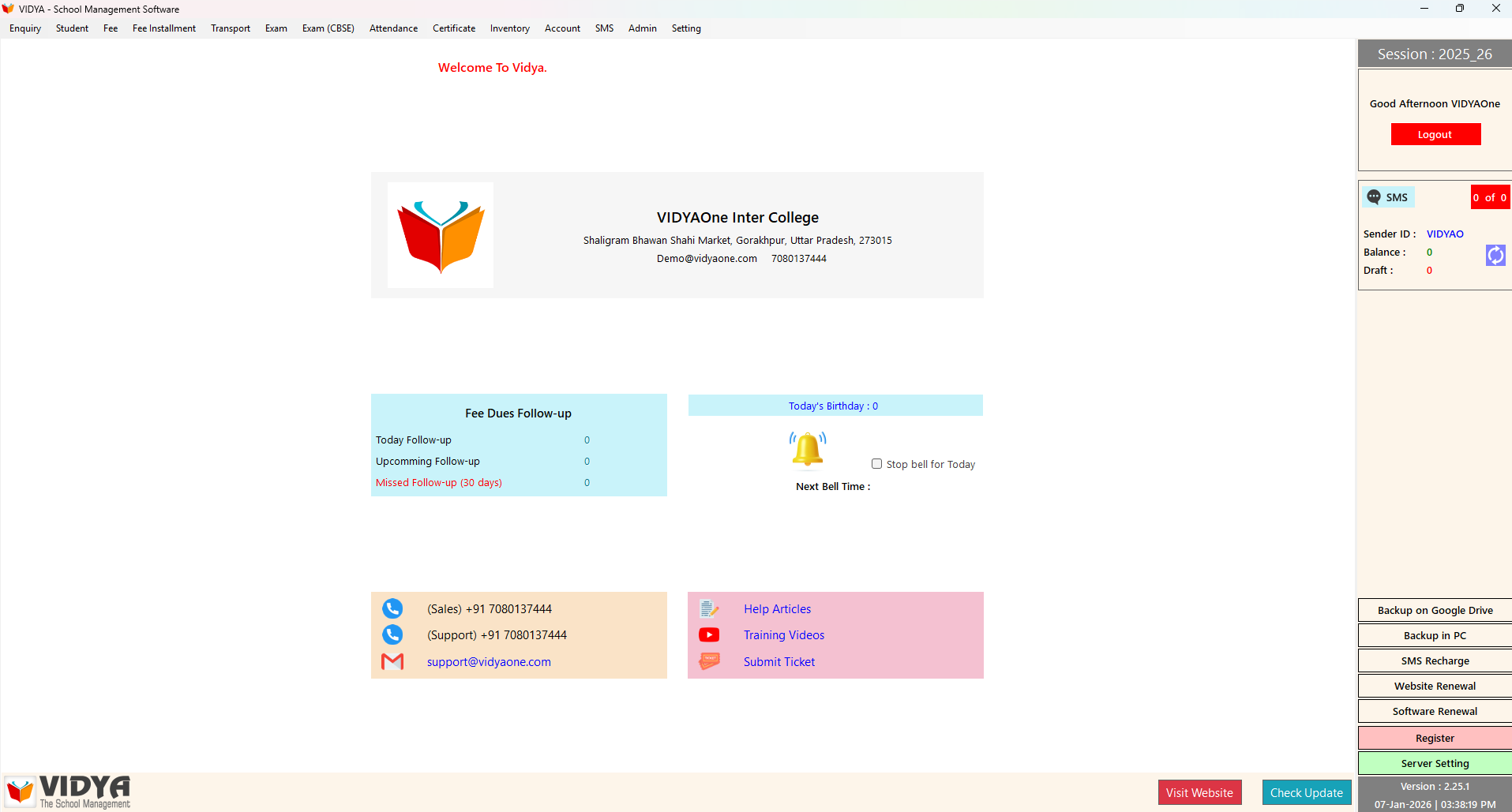
Open the VIDYAOne School Management Software and enter your License Key to activate all features.
Download Your Onboarding Certificate
You’re almost done. This certificate confirms that your school has successfully completed the VIDYAOne onboarding process. You can keep it for records, approvals, or future reference.
- Confirms successful installation and system readiness.
- Includes key school and contact information.
- Useful for management review and IT documentation.
Onboarding Setup
Choose onboarding type and fill in the details below.
Trial Setup Details
Provide basic information to get started with your free trial.
Ready to Master Your Software?
Get training, access help resources, and connect with our support team to unlock full potential.
Help Articles
Quick guides for common tasks like admissions, fees, reports, and system maintenance.
START READING →Training Videos
Step-by-step video tutorials covering all major modules and advanced features.
WATCH NOW →Submit a Ticket
Get dedicated support for technical issues, feature requests, or customization needs.
OPEN TICKET →Request Callback
Schedule a call with our expert team for personalized guidance and troubleshooting.
BOOK CALL →Connect on WhatsApp
Instant support via WhatsApp for quick questions and real-time assistance.
MESSAGE NOW →Schedule Training
Book live training sessions for your staff to master all software features.
Schedule Training →